Copy LinkedIn profiles into Salesforce
in one click

Stop copy-pasting. Start closing.

Available on the Chrome Web Store. Install it, sign in, and start saving leads in one click.

One feature. Built to be fast.

One-click capture

Hit the Portifylead.com button on any LinkedIn profile. Name, title, company, and URL land in Salesforce instantly — no forms, no copy-paste.

No automation. No bots.

Portifylead.com reads only what you can already see on the page. No background activity, no automated requests — just you, clicking once.

1 click
is all it takes
< 3s
average capture time

Step 1

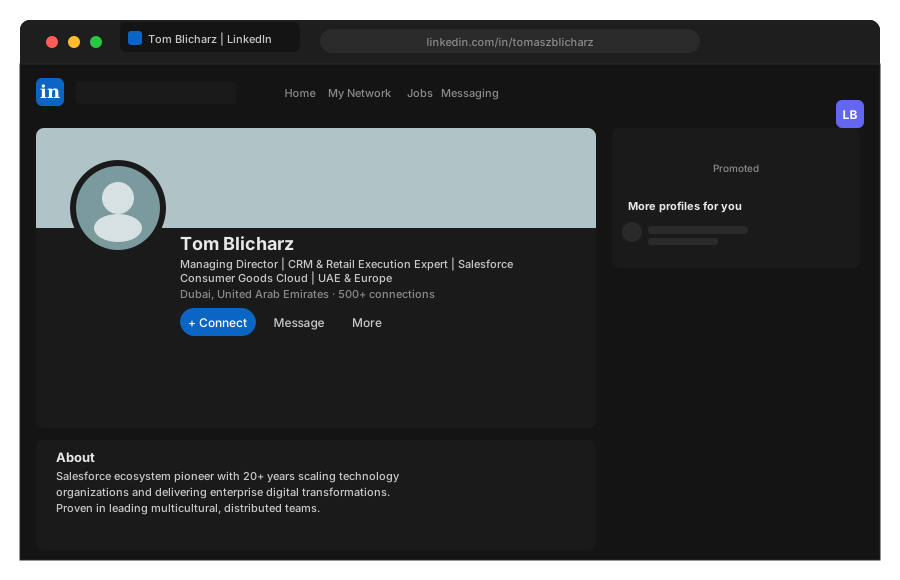
Find them on LinkedIn

Browse the way you always do. Nothing changes.

Step 1 — Browse LinkedIn

Step 2

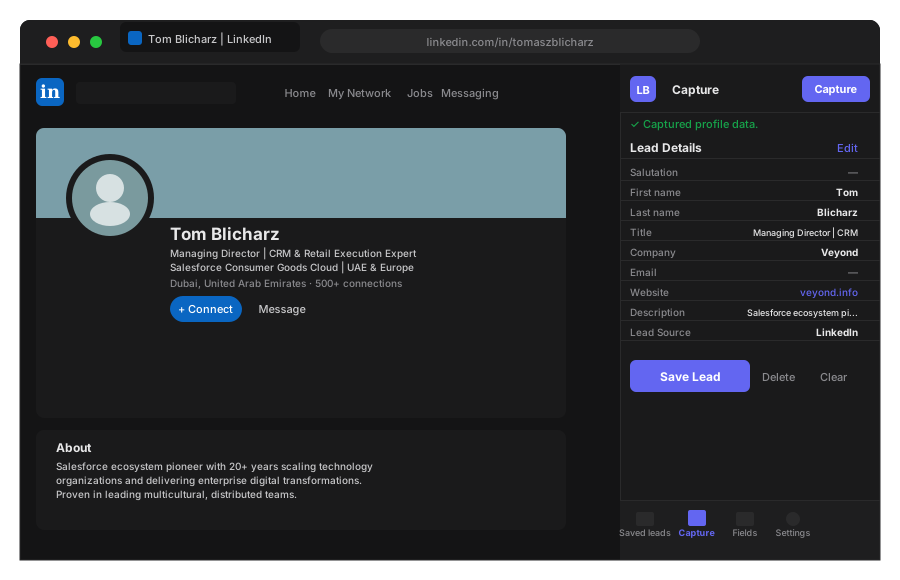
Click once

That's the whole job.

Step 2 — Click once

Step 3

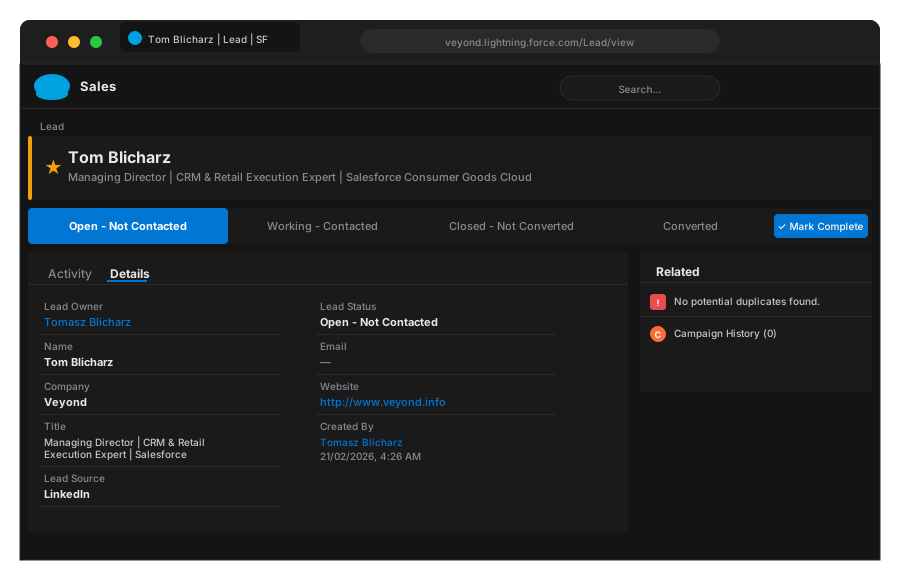
They're in Salesforce. Right now.

Name, title, company, LinkedIn URL. Done before you move on.

Step 3 — Profile in Salesforce

Built out of frustration.

Not a boardroom.

Portifylead.com was built by two people who lived the problem firsthand. One doing SDR work, copy-pasting LinkedIn profiles into Salesforce field by field every day. The other, the technical mind who decided to fix it properly.

No AppExchange subscription costing hundreds a month. No automation tool risking a LinkedIn ban. No bloated platform charging for 47 features to use one. Just the thing that needed to exist — one click, one lead, done.

No automation No LinkedIn risk One job, done perfectly

Three plans. Named price.

No annual plans. Cancel anytime.

Standard

$5

per month

  • Chrome Extension
  • 1 LinkedIn + 1 Salesforce account
  • Unlimited profile captures
  • Record edit before transfer
  • Recent transfers list
  • Reply within 48 hours
Get Started

Team

$25

per month

  • Everything in Premium
  • Up to 10 users
  • Admin dashboard with usage stats
  • Admin can manage users
Contact Sales

Be first. One click away.

Join the newsletter for release notes, launch updates, and early access.

Common questions.

How does it actually work?

You visit a LinkedIn profile in your browser. You click the Portifylead.com button in your Chrome extensions bar. Name, title, company, and LinkedIn URL land in Salesforce as a Lead. That's it.

Will LinkedIn flag or restrict my account?

Portifylead.com reads only what you can already see on the page. No automated browsing, no bulk requests, no bot behaviour. That said, LinkedIn's terms of service are theirs to change — we recommend using the extension the way you'd browse normally.

What data gets transferred to Salesforce?

First name, last name, job title, company name, LinkedIn profile URL, and email address (when visible on the profile). These map directly to standard Salesforce Lead fields.

Which Salesforce editions does it support?

Any edition that supports the standard Lead object via the Salesforce REST API — Professional, Enterprise, Unlimited, and Developer. It does not work with Group Edition (no API access).

Do I need a Salesforce admin to set it up?

No. You connect your own Salesforce account during onboarding — under two minutes. No custom fields, no code, no admin involvement required for the Standard plan.

Is there a free trial?

Yes — every new account includes a 14-day free trial. The Standard plan is $5/month after that. If it doesn't work for you, contact us and we'll refund it.

Can I edit the record before it goes into Salesforce?

Yes. The Standard plan includes an edit step — review and adjust the pre-filled fields in the panel before confirming the transfer.

Is my Salesforce data secure?

Portifylead.com connects to Salesforce using OAuth — we never store your Salesforce credentials. The connection uses the same authentication flow as any other approved Salesforce app.

Why does Salesforce say the app must be installed into the org?

If a user sees an OAuth error like error=invalid_client with the message app must be installed into org, Salesforce is blocking the login because the connected app is not yet approved inside that Salesforce org.

Admins can confirm this in Setup → Connected Apps OAuth Usage. When the app appears with a denied attempt and an Install action, Salesforce is asking for an org-level approval before users can continue.
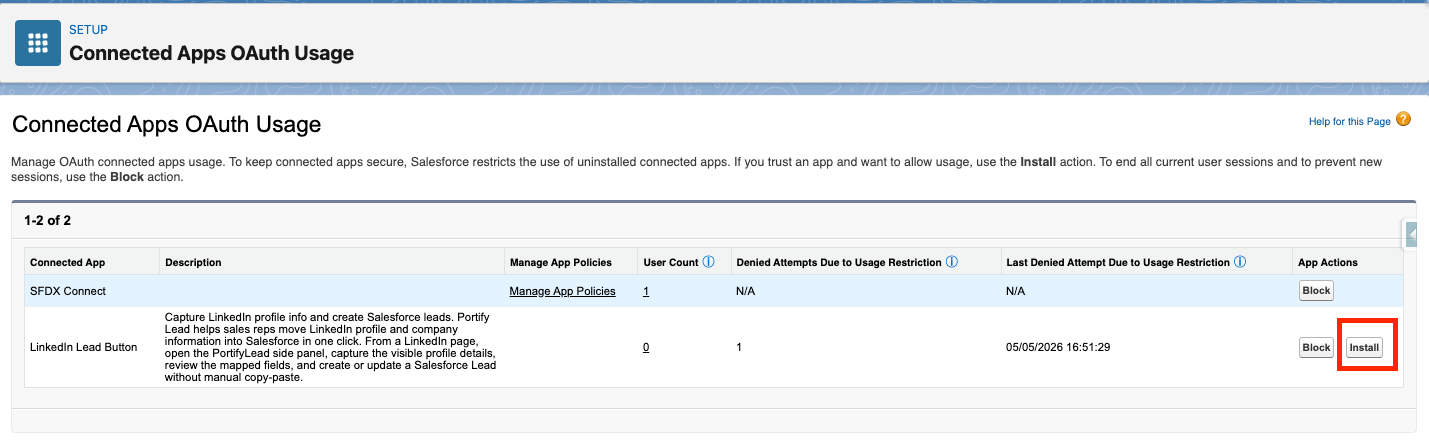
Salesforce Connected Apps OAuth Usage page showing the Install action for LinkedIn Lead Button
In Salesforce, open Connected Apps OAuth Usage. If Portifylead appears with denied attempts and an Install button, click Install to approve the app for that org.

After the app is installed, users in that org can retry the Salesforce login from the Portifylead Chrome extension.

What this means:

  • The app is trusted, but not yet approved in that Salesforce org.
  • This is an org policy restriction, not a bad password or callback URL issue.
  • Some orgs work immediately because the app was already installed or previously approved there.

How to fix it:

  1. In Salesforce, go to Setup.
  2. Search for Connected Apps OAuth Usage.
  3. Find LinkedIn Lead Button in the list.
  4. Click Install.
  5. Retry the Salesforce sign-in from the extension.

If the app is already installed and the user still cannot connect, the next checks are the app's permitted-users policy, assigned access, and any org-level IP or MFA restrictions.