Available on the Chrome Web Store. Install it, sign in, and start saving leads in one click.
What it does
One feature. Built to be fast.
One-click capture
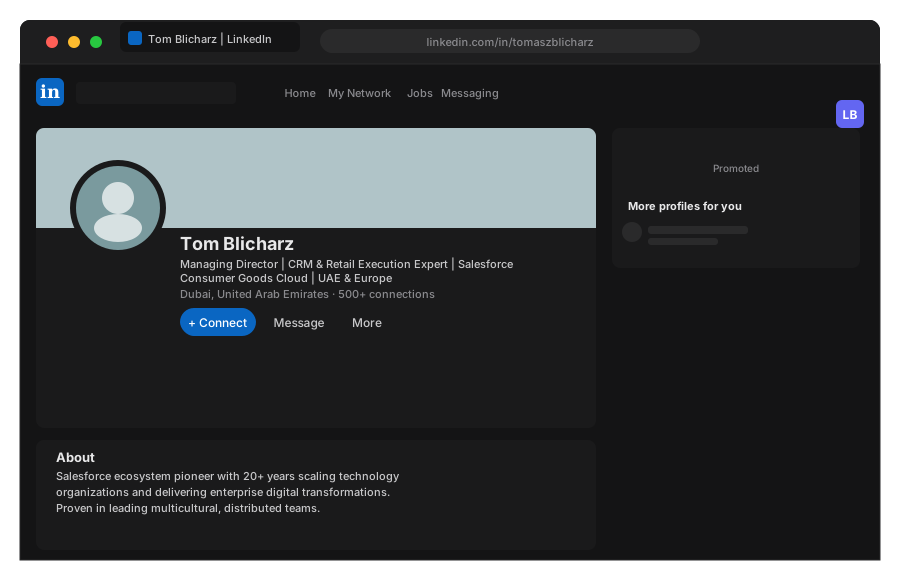
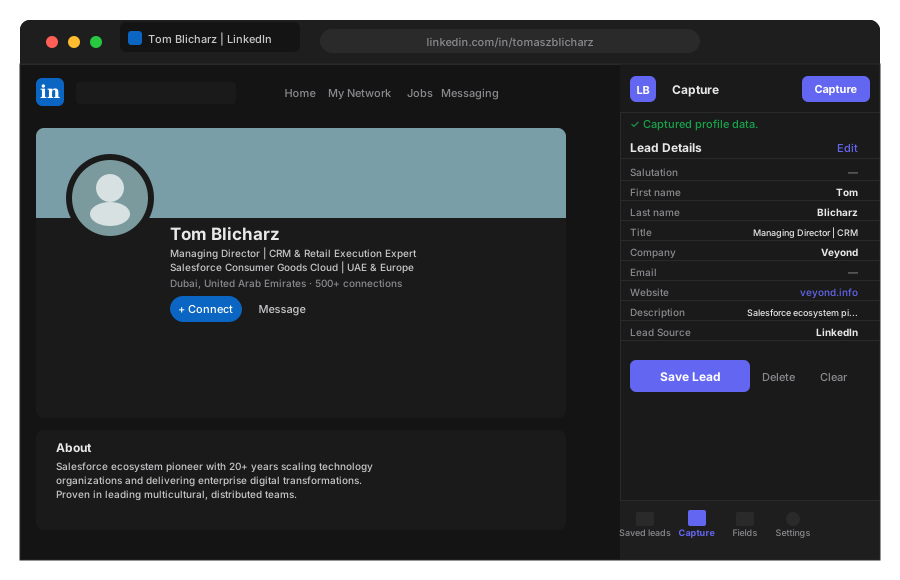
Hit the Portifylead.com button on any LinkedIn profile. Name,
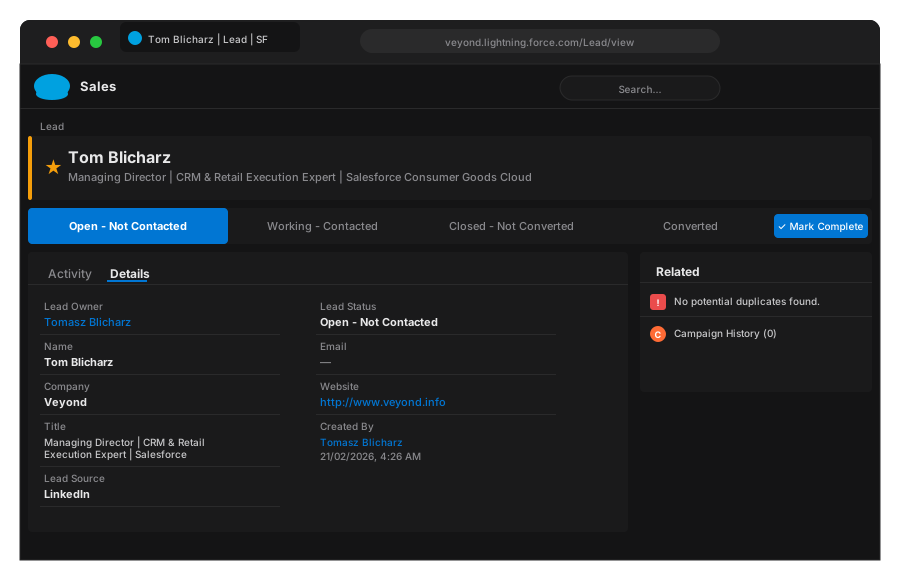
title, company, and URL land in Salesforce instantly — no forms, no copy-paste.
No automation. No bots.
Portifylead.com reads only what you can already see on the page.
No background activity, no automated requests — just you, clicking once.
1 click
is all it takes
< 3s
average capture time
Step 1
Find them on LinkedIn
Browse the way you always do. Nothing changes.
Step 2
Click once
That's the whole job.
Step 3
They're in Salesforce. Right now.
Name, title, company, LinkedIn URL. Done before you move on.
Built out of frustration.
Not a boardroom.
Portifylead.com was built by two people who lived the problem firsthand. One doing SDR work,
copy-pasting LinkedIn profiles into Salesforce field by field every day. The other, the
technical mind who decided to fix it properly.
No AppExchange subscription costing hundreds a month. No automation tool risking a LinkedIn ban.
No bloated platform charging for 47 features to use one. Just the thing that needed to exist —
one click, one lead, done.
No automationNo LinkedIn riskOne job, done perfectly
Join the newsletter for release notes, launch updates, and early
access.
FAQ
Common questions.
How does it actually work?
You visit a LinkedIn profile in your browser. You click the Portifylead.com button in your
Chrome extensions bar. Name, title, company, and LinkedIn URL land in Salesforce as a Lead.
That's it.
Will LinkedIn flag or restrict my account?
Portifylead.com reads only what you can already see on the page. No automated browsing, no
bulk requests, no bot behaviour. That said, LinkedIn's terms of service are theirs to change
— we recommend using the extension the way you'd browse normally.
What data gets transferred to Salesforce?
First name, last name, job title, company name, LinkedIn profile URL, and email address (when
visible on the profile). These map directly to standard Salesforce Lead fields.
Which Salesforce editions does it support?
Any edition that supports the standard Lead object via the Salesforce REST API —
Professional, Enterprise, Unlimited, and Developer. It does not work with Group Edition (no
API access).
Do I need a Salesforce admin to set it up?
No. You connect your own Salesforce account during onboarding — under two minutes. No custom
fields, no code, no admin involvement required for the Standard plan.
Is there a free trial?
Yes — every new account includes a 14-day free trial. The Standard plan is $5/month after
that. If it doesn't work for you, contact us and we'll refund it.
Can I edit the record before it goes into Salesforce?
Yes. The Standard plan includes an edit step — review and adjust the pre-filled fields in the
panel before confirming the transfer.
Is my Salesforce data secure?
Portifylead.com connects to Salesforce using OAuth — we never store your Salesforce
credentials. The connection uses the same authentication flow as any other approved
Salesforce app.
Why was contact data not captured?
If a profile's contact data does not come through on the first capture, the usual reason is that LinkedIn has not loaded the contact details panel yet.
The fix is simple: open the profile's Contact info popup in LinkedIn, then click the Portifylead capture button again.
Why this works:
Some contact fields are only present after LinkedIn opens the contact popup.
The extension can only capture information that is currently loaded in the page.
What to do:
Open the LinkedIn profile.
Click Contact info.
Wait for the LinkedIn contact popup to fully load.
Click the Portifylead capture button again.
Why does Salesforce say the app must be installed into the org?
If a user sees an OAuth error like error=invalid_client with the message app must be installed into org, Salesforce is blocking the login because the connected app is not yet approved inside that Salesforce org.
Admins can confirm this in Setup → Connected Apps OAuth Usage. When the app appears with a denied attempt and an Install action, Salesforce is asking for an org-level approval before users can continue.
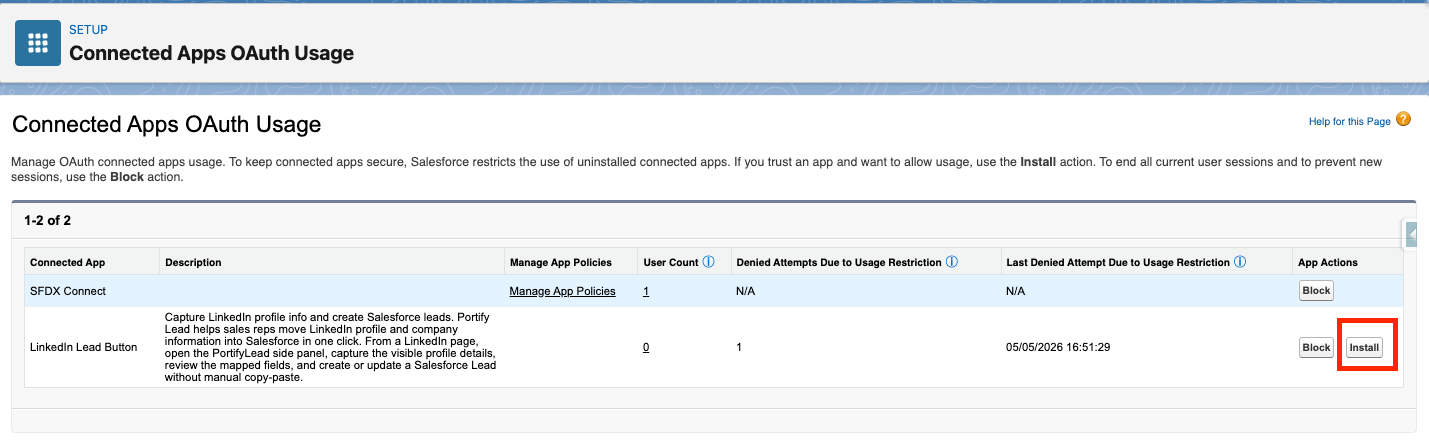
In Salesforce, open Connected Apps OAuth Usage. If Portifylead appears with denied attempts and an Install button, click Install to approve the app for that org.
After the app is installed, users in that org can retry the Salesforce login from the Portifylead Chrome extension.
What this means:
The app is trusted, but not yet approved in that Salesforce org.
This is an org policy restriction, not a bad password or callback URL issue.
Some orgs work immediately because the app was already installed or previously approved there.
How to fix it:
In Salesforce, go to Setup.
Search for Connected Apps OAuth Usage.
Find LinkedIn Lead Button in the list.
Click Install.
Retry the Salesforce sign-in from the extension.
If the app is already installed and the user still cannot connect, the next checks are the app's permitted-users policy, assigned access, and any org-level IP or MFA restrictions.
We use cookies to improve your experience. By continuing, you agree to our use of cookies.